Method 1:Pairing to wifi hotspot of mobile phone
(Operation video connection:https://ubiaota-us.oss-us-west-1.aliyuncs.com/demo_pair_to_hotspot.mp4)
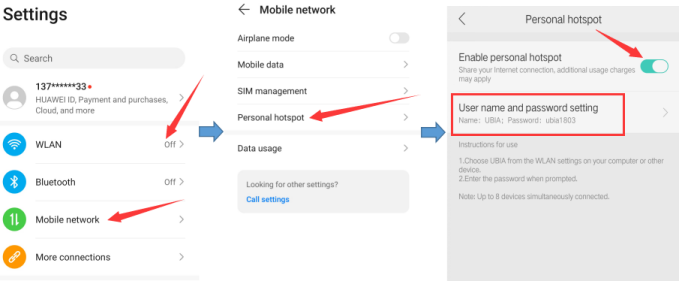
- 1-1) please try to turn on WiFi hotspot with another mobile phone
Close mobile phone WiFi , open the traffic data, open the hotspot button of the mobile phone, View the name and password of the hotspot.
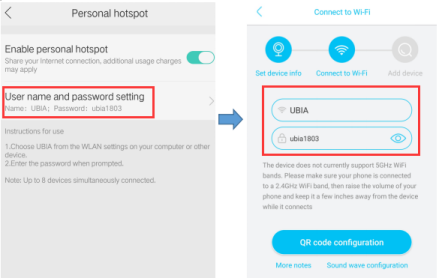
- 1-2) connect the mobile phone running this application to the mobile phone with WiFi hotspot
- 1-3) reset the device first (hold on the reset key for 5-10 seconds, and you will hear the machine say that the system is reset and start pairing), add it again (manually input the name and password of the traffic hotspot in the WiFi setting interface, and scan the code to connect the device), and wait until it is added successfully
- 1-4) enter the preview page first, and click the settings button in the upper right corner to enter the device settings page, at the bottom line of the device settings page, click “firmware update” and wait for the device to be updated. During the upgrade process, the device will automatically restart twice, the red and blue indicator lights are on at the same time. Please keep the power on.
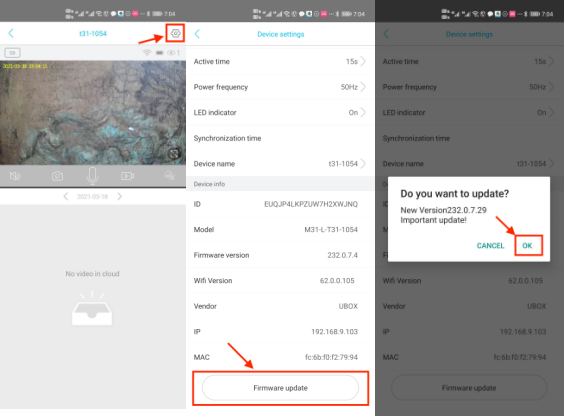
- 1-5) after the upgrade is successful, enter the device settings page again and click firmware upgrade, make sure it prompt the latest firmware
- 1-6) reset the device again, connect the mobile phone running this application to the WiFi router, and pair device finally
Method 2:Modify your wifi router temporally
- 2-1) Login to your wifi router setting interface
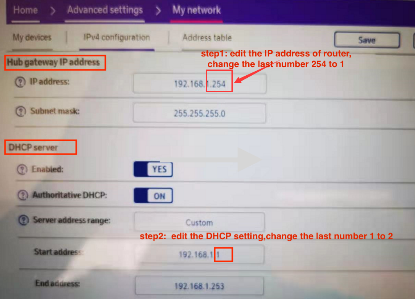
step-1,set the last number of the router IP address to 1;
step-2,set the start address of the DHCP service. The last number cannot be 1,you can set it to 2.
step-3. save modified and reboot your wifi router.
Reminder:The below is example of BThub router. For other routers, please find these two options and modify them!
- 2-2) reset the device first (hold on the reset key for 5-10 seconds, and you will hear the machine say that the system is reset and start pairing), add it again (manually input your wifi name and password, and scan the code to connect the device), and wait until it is added successfully.
- 2-3) enter the preview page first, and click the settings button in the upper right corner to enter the device settings page, at the bottom line of the device settings page, click “firmware update” and wait for the device to be updated. During the upgrade process, the device will automatically restart twice, the red and blue indicator lights are on at the same time. Please keep the power on.
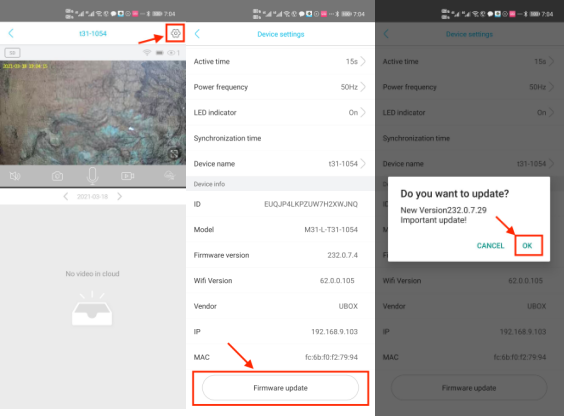
- 2-4) after the upgrade is successful, enter the device settings page again and click firmware upgrade, make sure it prompts the latest firmware
- 2-5) this step is optional if you want to recovery your wifi setting, please repeat 2-1) to modify your wifi route IP address to previous setting, after wifi router rebooted, reset the device again, connect the mobile phone running this application to the WiFi router, and pair device finally.